
PB Online is available as a Progressive Web App (PWA). A PWA is a secure website that can be installed on a supported device and opened from an app icon, providing an app-like experience without downloading PB Online from the App Store or Google Play.
TABLE OF CONTENTS
- Overview
- Install PB Online on a Computer
- Switch from the Website to the App
- Install PB Online on a Mobile Device
- Sign In and Use PB Online
- Troubleshooting
Overview
Installing the PB Online PWA creates a convenient shortcut on your desktop, taskbar, or mobile Home Screen. After installation, select the PropertyBoss Online icon to open the login page instead of entering the website address each time.
What you need
- An active PB Online user account and password
- Access to https://online.propertyboss.net
- A supported web browser with permission to install or add websites to the Home Screen
Install PB Online on a Computer
- Open a supported web browser and go to https://online.propertyboss.net
- On the PB Online login page, select Add it to your home screen.
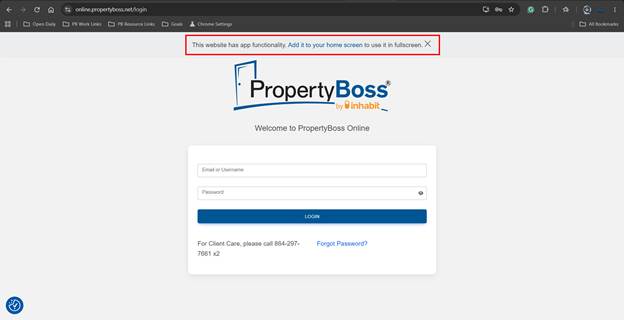
- When the browser displays the installation prompt, select Install app.
- Wait for PB Online to open in its own application window.
- If desired, pin the PB Online icon to your taskbar or keep the desktop shortcut for quick access.
To open PB Online later: Select the PB Online icon from your desktop, taskbar, or application list, then sign in.
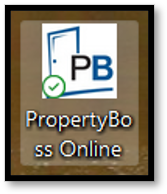
Example computer desktop icon for the PB Online app.
Switch from the Website to the App
If you open PB Online in a web browser on your computer, you can switch to the installed PB Online app at any time. Select the Open in app button in the browser’s address bar. PB Online will open in the app window, whether you are on the login page or already signed in.
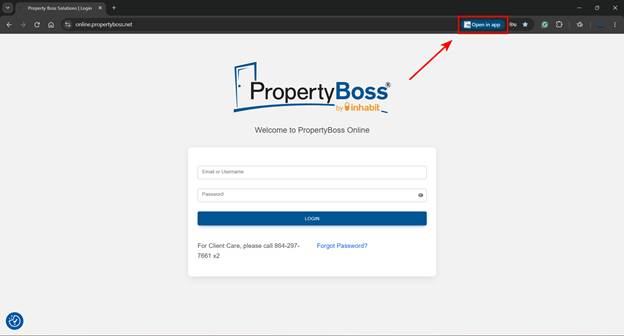
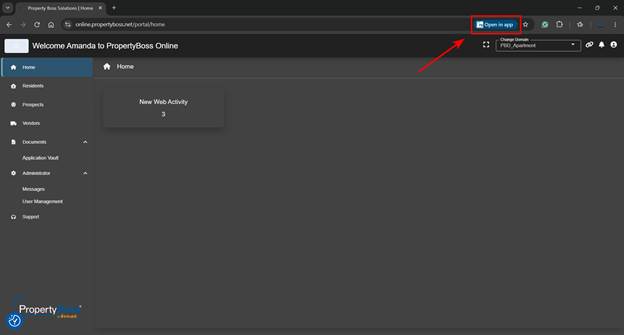
Select Open in app in the browser’s URL bar to continue in the installed PB Online app.
Install PB Online on a Mobile Device
- Open your device browser and go to https://online.propertyboss.net
- Open the browser’s Share menu.
- Select Add to Home Screen. You may need to scroll through the available actions to find this option.
- Review the displayed name, then select Add or confirm the installation.
- Locate the PB Online icon on your Home Screen.
To open PB Online later: Tap the PB Online icon, then sign in on the login screen.
Sign In and Use PB Online
- Open PB Online from the installed icon.
- Enter your email address or PropertyBoss username and password.
- Select Login.
After you sign in, PB Online works the same way regardless of the device type or preferred browser. Only one active PB Online session can be open for a user at a time; signing in from a second location ends the first session.
Troubleshooting
- The installation option is not visible: Confirm that you opened the PB Online website in a supported browser rather than inside an email or messaging preview.
- Add to Home Screen is not listed: Open the browser’s Share menu and scroll through all available actions.
- The app opens to the login page: This is expected. Enter your PB Online credentials to continue.
- You are signed out of another session: PB Online permits one active session per user. Sign in again on the device you want to use.