
There are several validation errors that may appear when interfacing transactions from PropertyBoss to QuickBooks. This article covers common validation errors and the steps you can take to resolve them.
The error message shown below is an example. The exact message you receive may be different depending on the transaction or information QuickBooks is unable to accept.
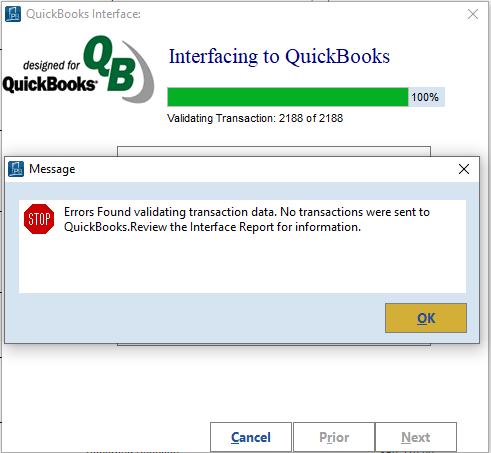
Reviewing the Interface Report
Before troubleshooting, review the Interface Report for additional information about the error. At the top of the Interface Report:
- Select Show Details to view additional information about the interface.
- Select Show Errors Only to narrow the report to transactions that returned an error.
- Review the error details before proceeding with the applicable resolution below.
Before Resending the Transaction
- Confirm that the affected transaction was not successfully created in QuickBooks before resending it.
- If a transaction was already created in QuickBooks and is sent again, this could result in a duplicate transaction.
COMMON ERRORS
Date Format Error: Return Code is -1
You may receive an error similar to: Unable to import transaction file. Return Code is -1.
This error can occur when the computer running QuickBooks uses a different date format than PropertyBoss. PropertyBoss uses the MM/DD/YYYY date format. If the local computer, server, or QuickBooks environment is using DD/MM/YYYY, the date formats will not match.
Resolution
First, review the date format on the local computer, server, and QuickBooks environment as applicable. Update the date format to MM/DD/YYYY where needed. Once the date format has been corrected, update the accounting information and resend the interface file:
- Open PB Remote.
- Click Export Setup for Remote and follow the prompts.
- Open PropertyBoss.
- Go to General Ledger.
- Select the Accounting Files tab.
- Click Import from QuickBooks and follow the prompts.
- Return to General Ledger.
- Select View Previous Interface Runs.
- Double-click the applicable Interface File.
- Click Resend.
- Review the new Interface Report to confirm whether the transaction was successfully sent.
"[Field] Is Too Long" Error
You may receive a validation error indicating that a particular field is too long. For example, the error may reference an address, comment, company name, or other field. The Interface Report should provide additional information about the field causing the error.
Resolution
Review the error on the Interface Report to identify the field that is too long. Then review the corresponding information in PropertyBoss and QuickBooks. For example, if the error indicates that a payee address line is too long:
- Review the payee's address information.
- Identify the address field referenced in the error.
- Shorten the information so that it can be accepted by QuickBooks.
- Make sure the applicable information is updated in both QuickBooks and PropertyBoss.
- Confirm that the affected transaction was not previously created in QuickBooks.
- Attempt to send the transaction again.
If accounting setup information was changed in QuickBooks as part of the correction, complete the QuickBooks export and import process before attempting the interface again:
- Open PB Remote.
- Click Export Setup for Remote and follow the prompts.
- Open PropertyBoss.
- Go to General Ledger.
- Select the Accounting Files tab.
- Click Import from QuickBooks and follow the prompts.
- Attempt to send the transaction again.
If the Transaction Cannot Be Resent
- Depending on the transaction and the field causing the error, correcting the existing transaction may not allow it to be resent. If applicable, the transaction may need to be reversed and reposted with the corrected information before creating a new interface file.
- Another option is to manually enter the applicable transaction in QuickBooks rather than sending it through the PropertyBoss interface.
- Before recreating or resending an interface, always confirm that the transaction was not already created in QuickBooks to avoid creating duplicates.
Need Further Assistance?
If you are not sure how to resolve the error you see, please contact Client Care at care@propertyboss.com for assistance. When contacting Client Care, please include:
- The troubleshooting steps you have already completed.
- Screenshots showing the exact error message(s) you are currently receiving.
- A screenshot or copy of the applicable Interface Report, including the error details.
Providing this information will help Client Care understand what has already been attempted and determine the appropriate next steps.