
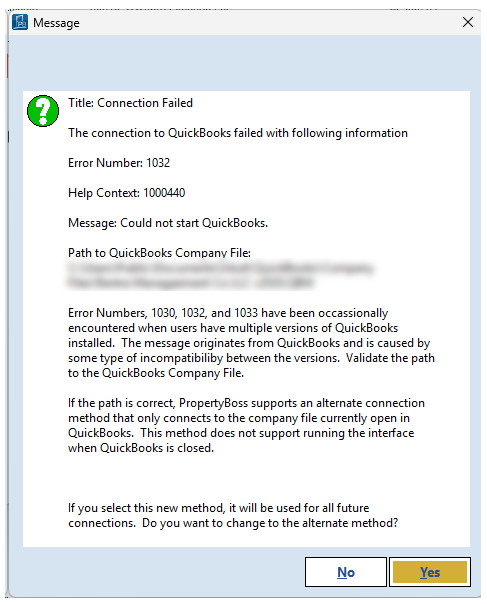
Text of Error Message
Title: Connection Failed
The connection to QuickBooks failed with following information
Error Number: 1032
Help Context: 1000440
Message: Could not start QuickBooks.
Path to QuickBooks Company File: [path]
Resolution
This error is commonly caused by one of two issues. Start with Scenario 1. If the error continues after completing those steps, proceed to Scenario 2.
Scenario 1: Multiple versions of QuickBooks are installed
When QuickBooks is upgraded, the newer version may be installed alongside the previous version rather than replacing it. If multiple versions of QuickBooks are installed on the computer, PB Remote may be unable to connect to the QuickBooks company file.
To check for and remove older versions:
- Close QuickBooks.
- Open Add or Remove Programs on your computer.
- In Search this list, enter QuickBooks.
- Review the results for multiple versions of QuickBooks.
- If an older version is installed, select it and choose Uninstall.
- Restart your computer.
- Open QuickBooks and attempt to interface again.
If the error continues, proceed to Scenario 2.
Scenario 2: QuickBooks is opening the company file from a different location
QuickBooks must open the company file from the same file location used by PropertyBoss and PB Remote. If QuickBooks is opening the file from a different location, the interface may fail.
To resolve this:
- Have all users log out of QuickBooks.
- Open Task Manager on your workstation.
- Close any QuickBooks processes that are still running in the background.
- Navigate to the location where the QuickBooks company file is saved.
- Open the company file directly from that location.
- Attempt to interface again.
Still Having Trouble?
If the error persists after completing both scenarios above, please contact Client Care at care@propertyboss.com for assistance. When contacting Client Care, please include:
- The troubleshooting steps you have already completed.
- Screenshots showing the exact error message(s) you are currently receiving.
Providing this information will help Client Care understand what has already been attempted and determine the appropriate next steps.