
PropertyBoss Online provides secure access to your PropertyBoss software from anywhere. Follow the steps below to sign in and launch PropertyBoss.
Before You Begin
Make sure you have:
- A PropertyBoss Online user account created by your Program Administrator
- Your login credentials (PropertyBoss username or email address and password)
- Internet access and a supported web browser
First Time Setup
Before launching PropertyBoss for the first time, you must install the PropertyBoss RDP Client.
- Log in to PropertyBoss Online.
- Select the Support tab.
- Download the PropertyBoss RDP Client for Windows.
- Run the installer after the download is complete.
- Follow the installation prompts to complete setup.
Logging into PropertyBoss Online and Launching PropertyBoss
- Open your web browser and go to: https://online.propertyboss.net
- Consider bookmarking the page for future access
- Enter your:
- PropertyBoss username (recommended), or
- Email address
- Enter your password.
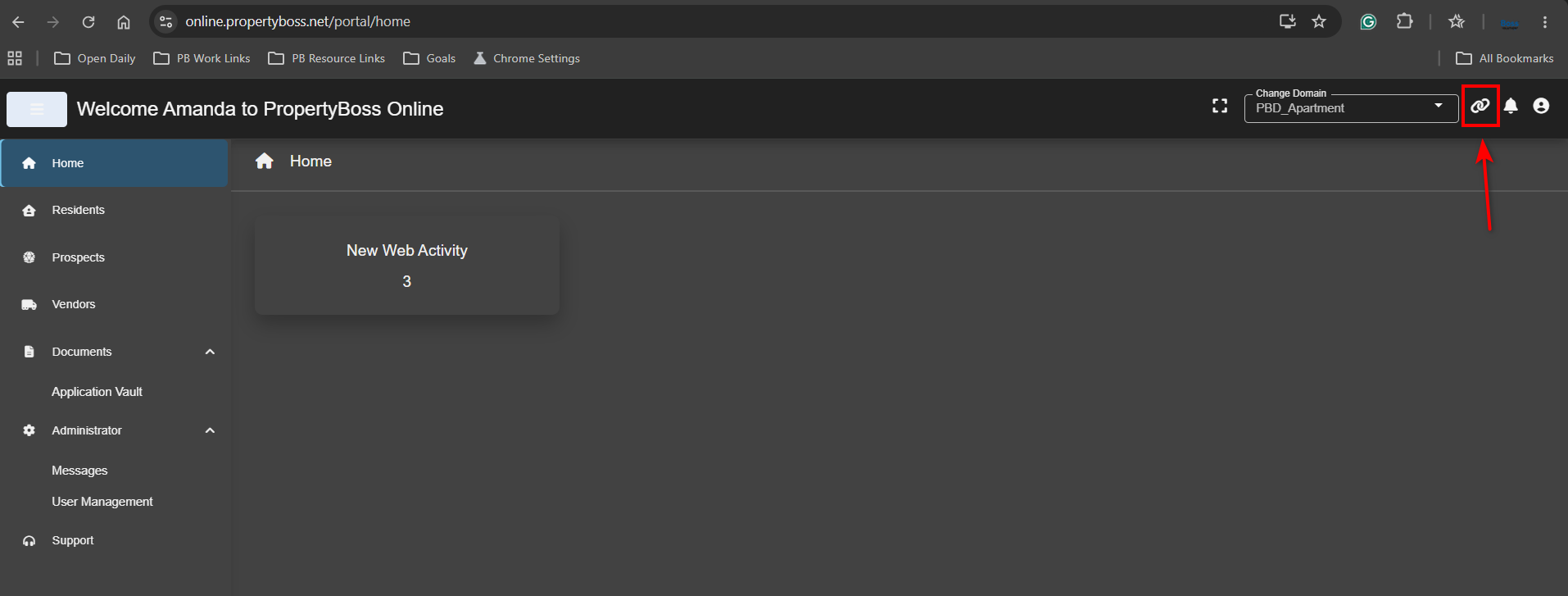
- Click the Launch icon (chain link icon) in the upper-right corner to open PropertyBoss.
Forgot Your Password?
If you cannot remember your password:
- Open the PropertyBoss Online login page.
- Select Forgot Password?
- Enter your email address.
- Follow the password reset instructions sent to your email.
- Return to the login page and log in with your new password.
Troubleshooting Login Issues
Invalid Username or Password
If you receive an "Invalid Username or Password" message:
- Verify that your username and email address was entered correctly.
- Confirm you are using the correct password.
- Reset your password using the Forgot Password? option if necessary.
- Contact your Program Administrator to verify your account is active and has permission to PropertyBoss.
Duplicate Email Address Message
If you receive a message indicating a duplicate email address exists:
- Contact your Program Administrator to review your user profile settings.
- Use your PropertyBoss username to log in until the duplicate email issue is resolved.
PropertyBoss Does Not Launch
If PropertyBoss does not open when you click the Launch icon:
- Verify that the PropertyBoss RDP Client has been installed.
- Open your computer's installed applications list and confirm that the PropertyBoss RDP Client appears.
- If the client is not installed, download and install it from the Support tab in PropertyBoss Online.
- Try launching PropertyBoss again.
Important Notes
- The PropertyBoss username is the preferred login method.
- Only one active PropertyBoss Online session is allowed per user. Logging in from a second device or browser will automatically sign out both sessions. If this occurs, open a new browser session and sign in again.
- On supported devices, PropertyBoss Online can be installed as a web app for faster access.
Need Help?
If you are unable to log in after completing the steps in this article, contact your company's PropertyBoss Program Administrator or PropertyBoss Support for additional assistance.